
Remove non-production time from your shifts
Every plant runs its shifts differently: hours change, crews switch lines, and production sometimes runs outside the plan. Since Tile+ only counts production during the shifts you've set up, many teams create extra-long shifts to be safe. But those extra hours show up as downtime that didn't really happen. That time needs to be cleaned out of your data; otherwise it drags your numbers down and the team gets penalized for it.
Out of Production fixes that. Select any part of a shift and tell Tile+ “don't count this time,” so your OEE and OOE only reflect the time your team was really meant to produce.
Who uses it, and when
Out of Production is available only to users with the Manager role. Operators can't exclude periods, but they can still use Early Finish as before.
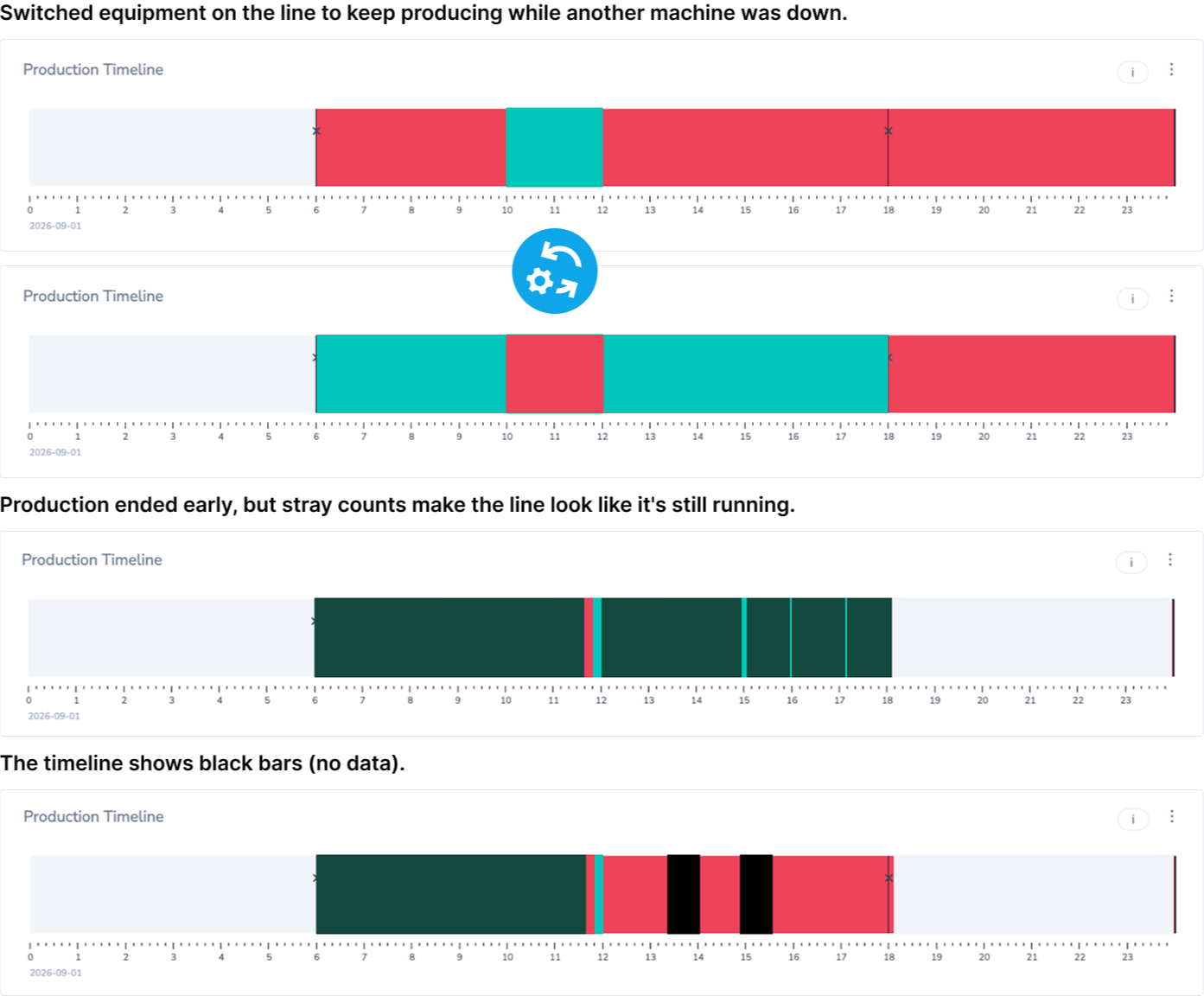
As a manager, use it when:
- The shift started early.
- You switched equipment on the line to keep producing while another machine was down7.
- Production ended early, but stray counts make the line look like it's still running.
- The timeline shows black bars (no data).
Best practice:
Keep Out of Production for time the line truly wasn't meant to run. Real planned and unplanned downtime are worth keeping in your numbers: they show where the biggest improvement opportunities are, and give your team a true baseline to measure progress against.
How it works:
-
That's it: the period shows as a striped block, and OEE and OOE are recalculated without it.
- On the line dashboard, open the ⋮ menu and select Out of Production. Tip: click the star ★ to add it to your favorite actions, so the button stays visible on the dashboard.
- A side panel opens with all the shifts of your production day. Pick the shift you want to adjust.
- Two handles appear on the timeline. Drag them to cover the time you want to remove. They snap to each event (uptime or downtime), so you don't need to find the exact minute, and the From and To times in the side panel update as you drag.
- Click Set Out of Production.
Made a mistake?
Or open the Out of Production panel and click the period: edit it and Save, or Delete it to restore the original uptime and downtime on the timeline.
Good to know
- Everything inside the period is removed, running time included. Select only the time that really shouldn't count.
- Covering two shifts? Do one shift, then the other.
- Clean up in Tile+, not in Excel. Your exports update on their own.
