
How to receive alerts in Microsoft Teams
Microsoft announced that Webhooks will no longer be supported starting March 31, 2026. To continue receiving your Tile+ alerts, you need to switch to Webflows.
In Microsoft Teams
To receive alerts directly in a Microsoft Teams channel, you need to create a workflow.
Follow these steps:
-
Open Microsoft Teams and select (or create) the channel where you want to receive alerts.
-
Click the three dots (… ) next to the channel name. Select Workflows.
-
In the modal that opens, click Manage (bottom-left). This opens the Workflows page.
-
Click + New flow (top-right).
-
Select Send webhook alerts to a channel. A pop-up will open.
-
Enter a name for your alert. Wait a few seconds, then click Next when it becomes available.
-
Choose the Team and Channel where alerts will be sent.
-
Wait for the page to update, then click Add workflow when the button turns purple.
-
A success message will appear. When a gray box with a link is shown, click Copy. You’ll need this URL later in Tile+.
Note: It may take a few seconds for the URL to appear. Please wait and DON'T click Done until you see it. Make sure to copy the URL—you’ll need it to paste into the Tile+ interface.
-
Click Done to finish.
Add Actions
After creating the workflow, it can receive messages from Tile+, but they won’t be formatted correctly yet.
Next, you need to tell the workflow how to process the incoming data (the JSON payload from Tile+) and display it as an Adaptive Card.
Configure the workflow formatting:
-
After creating the workflow, you’ll be redirected to the new flow screen. Click Home at the top to see all your workflows.
-
Find the workflow you just created.
-
Hover over it, click the three dots (… ), and select Edit.
-
By default, you’ll see 3 steps:
-
When a Teams webhook request is received (created earlier)
-
Send each adaptive card (default, unformatted message) or Initialize Variables
- Attachment is null
-
-
Delete all except the First one, click the three dots (… ) and select Delete, then confirm
Add a formatted Adaptive Card:
-
Click New step.
-
In the search bar, type Post card in a chat or channel and select it.
-
Configure the step as follows:
-
Post as: Flow bot
-
Post in: Channel
-
Team ID: Select the team from the dropdown
-
Channel ID: Select the channel from the dropdown
-
Card content section
In this section, you need to use a JSON file that matches the type of alert you’re creating. For example:
• Unplanned Downtime → UnplannedDowntimeAlertCardTemplate.json
• Metric threshold alerts (Availability, OEE, etc.) → MetricsThresholdAlertCardTemplate.json
Use the black button to download the available JSON templates.
Once you’ve selected the correct file, upload it and click Done. You’ll then be returned to the Home page.
In the Worximity Environment
Now, go to the Worximity environment:
-
Open the Admin → Alerts page.
-
Select the alert you want to send to Teams.
-
In the Delivery mode section, enable “Teams Notification”
-
Paste the workflow link you copied from Teams.
In Microsoft Teams
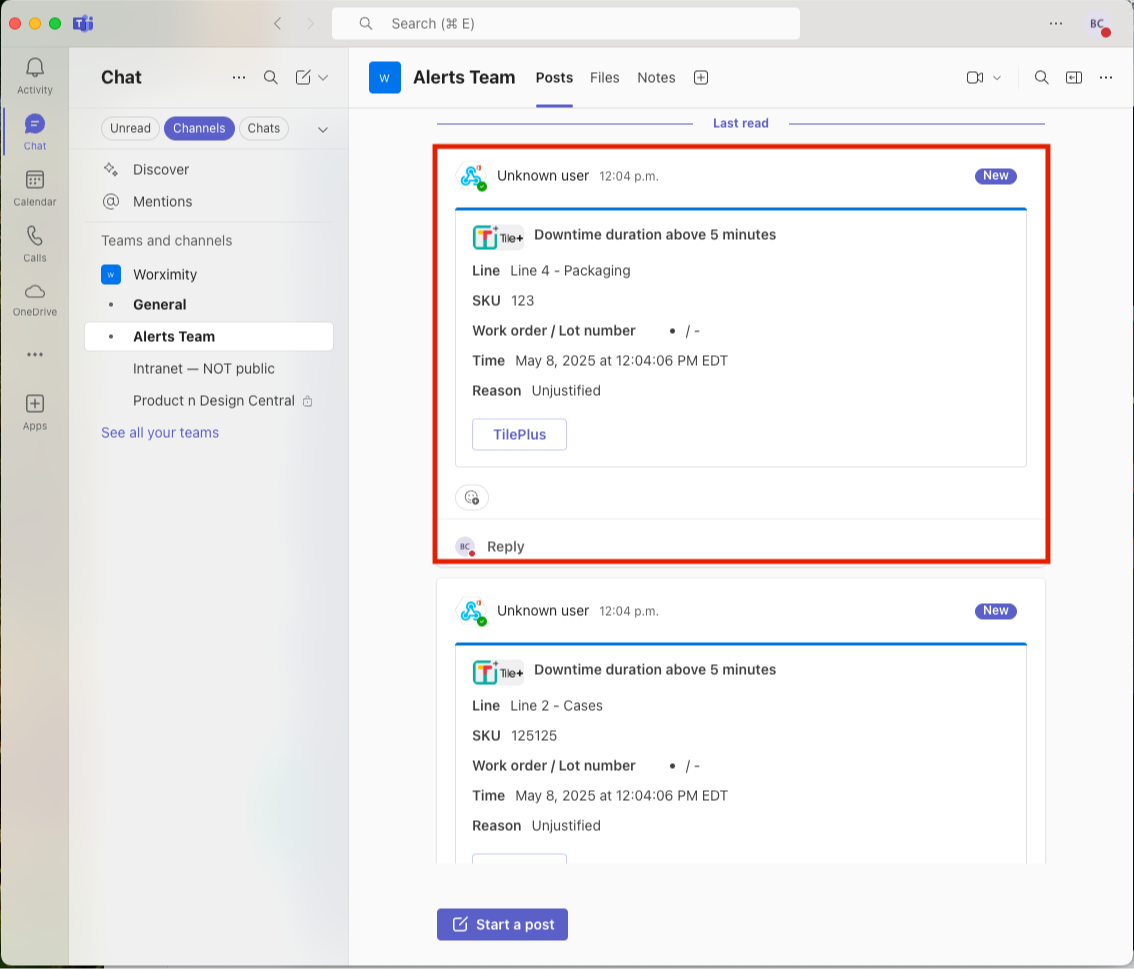
You're all set! When the alert trigger is activated, a notification will be sent to the designated Microsoft Teams channel.
Your alerts will now appear in your Teams channel.Your team can now start collaborating by adding comments and photos directly in your Microsoft Teams channel.
